Account settings in the portal
This guide shows how to manage passwords, password reset, and two-factor authentication (2FA) from the USDN web portal (https://portal.usdatanetworks.com). Screenshots reflect the current control-plane UI; your organization’s branding may differ slightly.
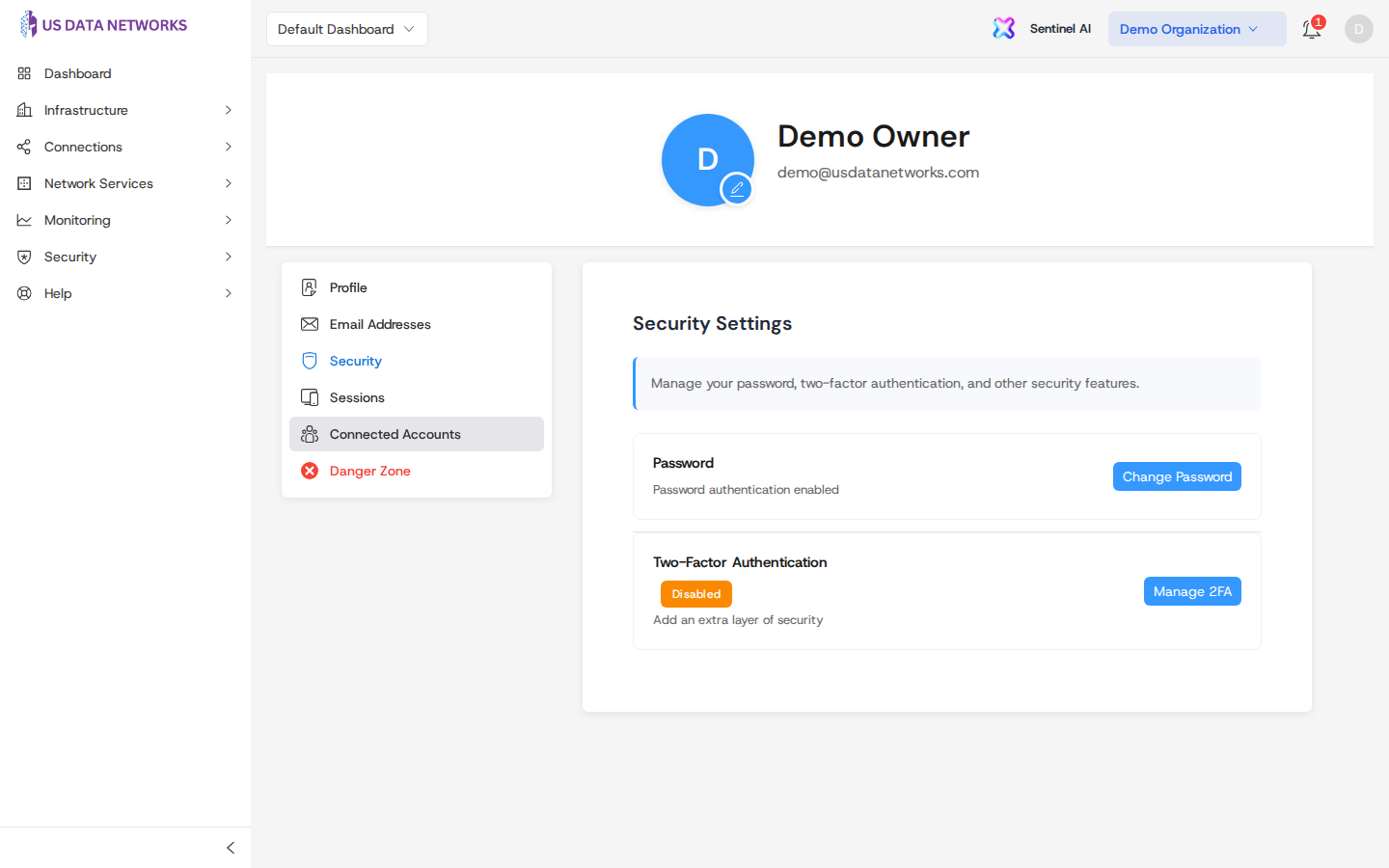
Open Account Settings
- Sign in to the portal.
- Open the user menu (top right) and choose Account (or go directly to Account Settings).
- Use the left navigation to switch between Profile, Email Addresses, Security, Sessions, and other sections.
The Security area is where you change your password and configure 2FA.
Forgot your password?
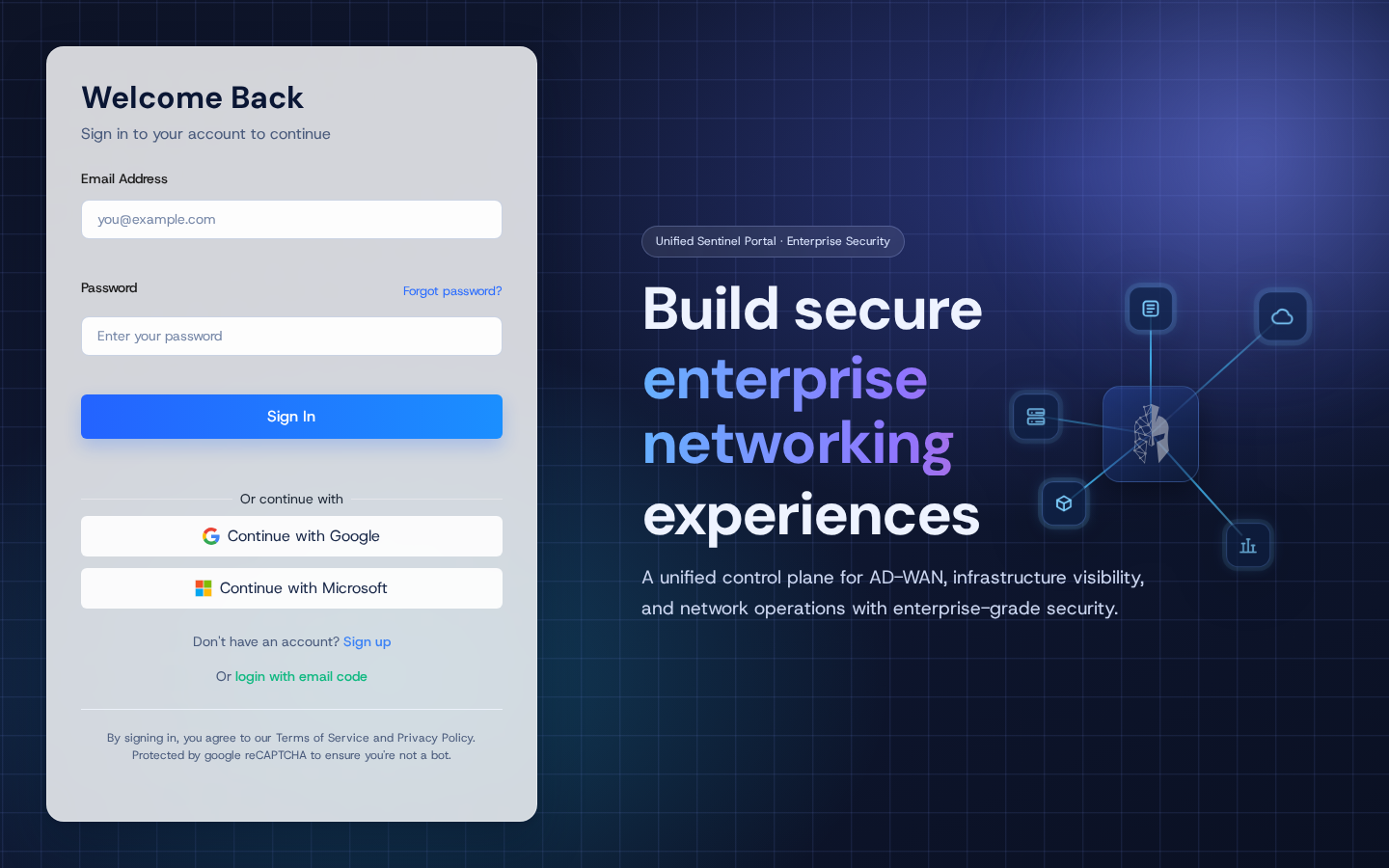
If you cannot sign in, use the Forgot password link on the login page.
Request a reset email
- On Forgot Password, enter the email address for your account.
- Click Send Reset Instructions.
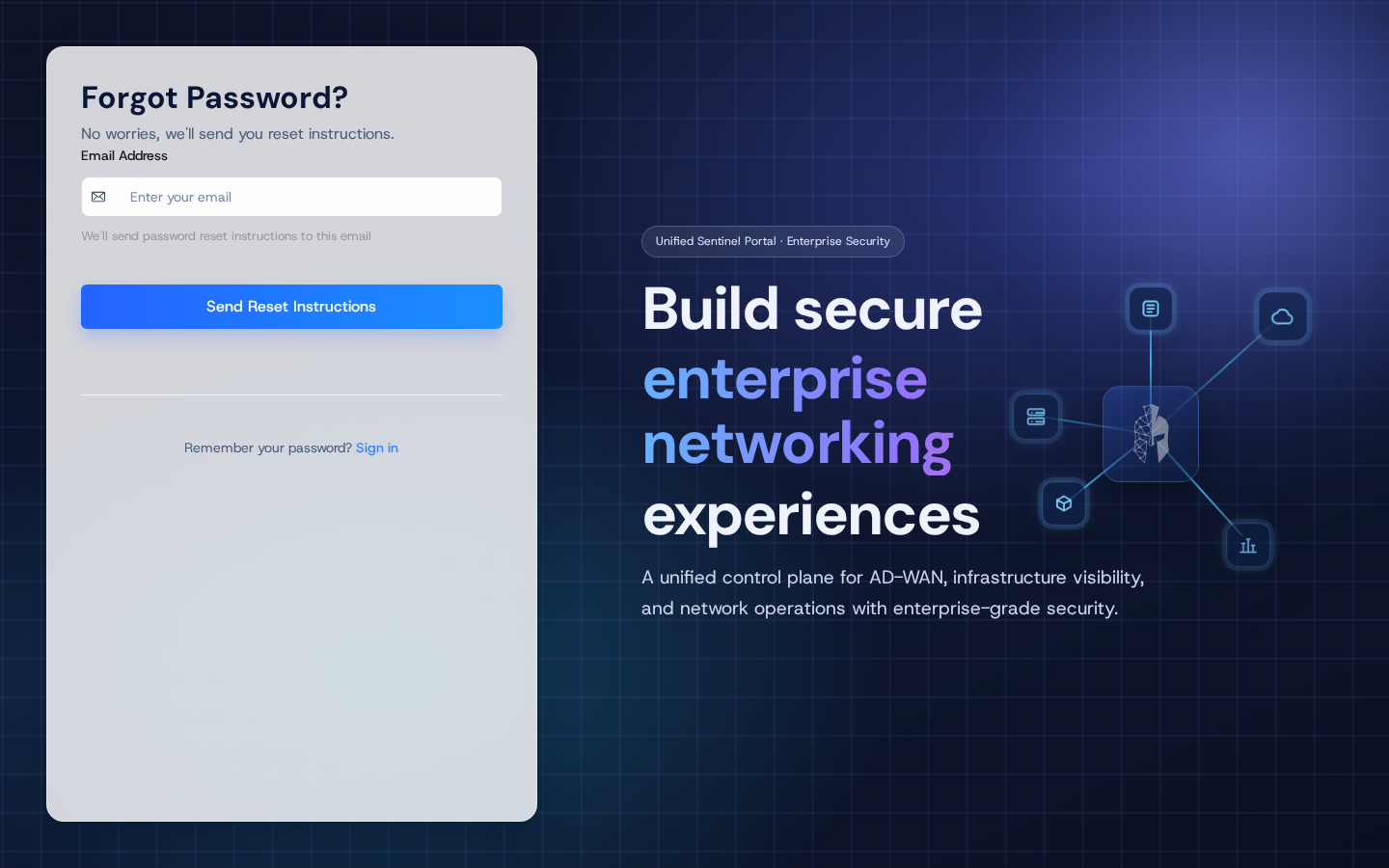
- When the request succeeds, the portal briefly confirms that instructions were sent. Check your inbox for a message from USDN with a reset link (and check spam/junk if nothing arrives within a few minutes).
Choose a new password
- Open the reset link from the email. It opens the Create New Password page in the portal.
- Enter and confirm a strong password (at least eight characters; follow any on-screen rules).
- Submit the form, then sign in with the new password.
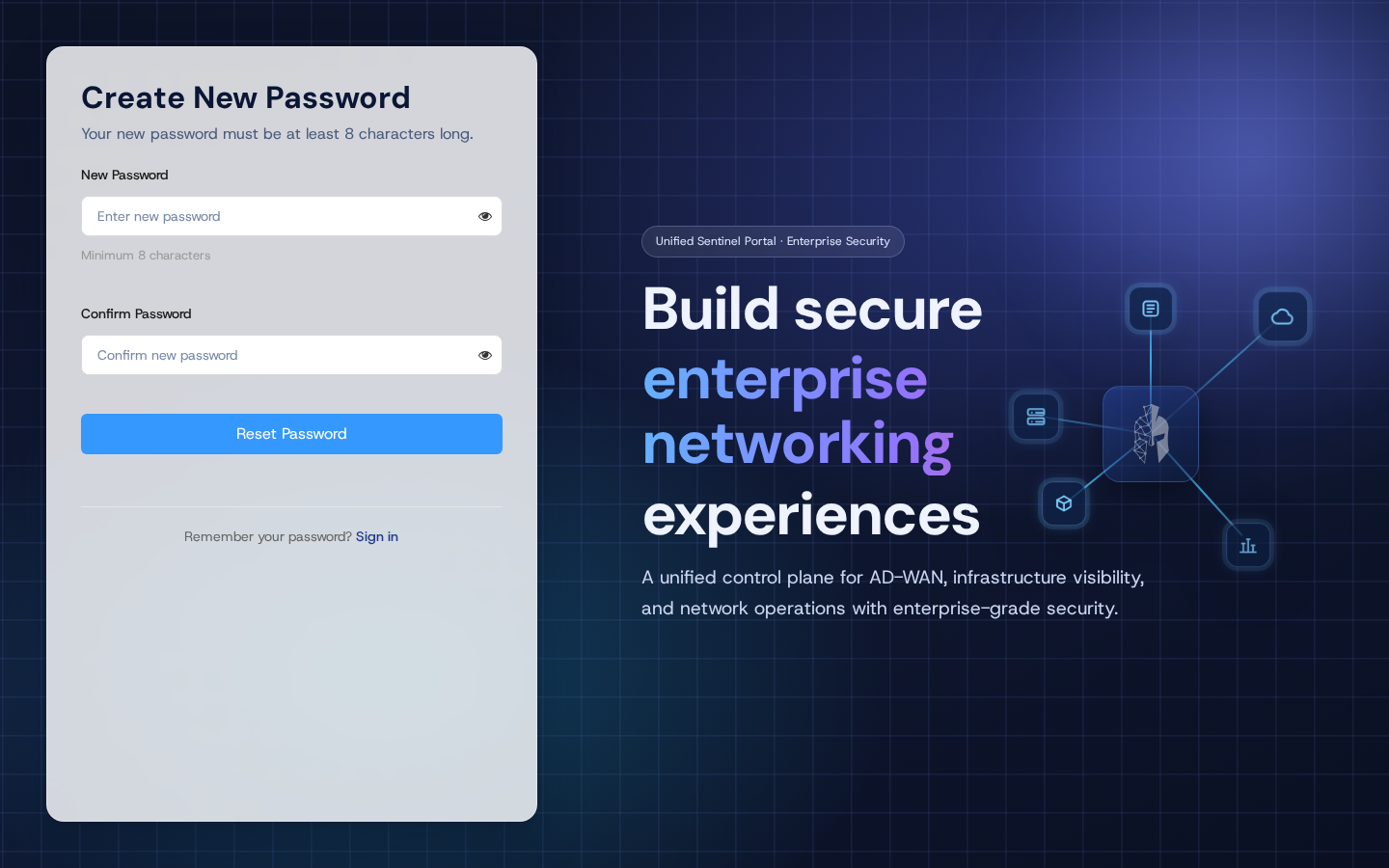
Reset links expire after a limited time. If the link is invalid or expired, request a new email from the Forgot Password page.
Change password while signed in
When you already know your password and want to rotate it:
- Go to Account → Security.
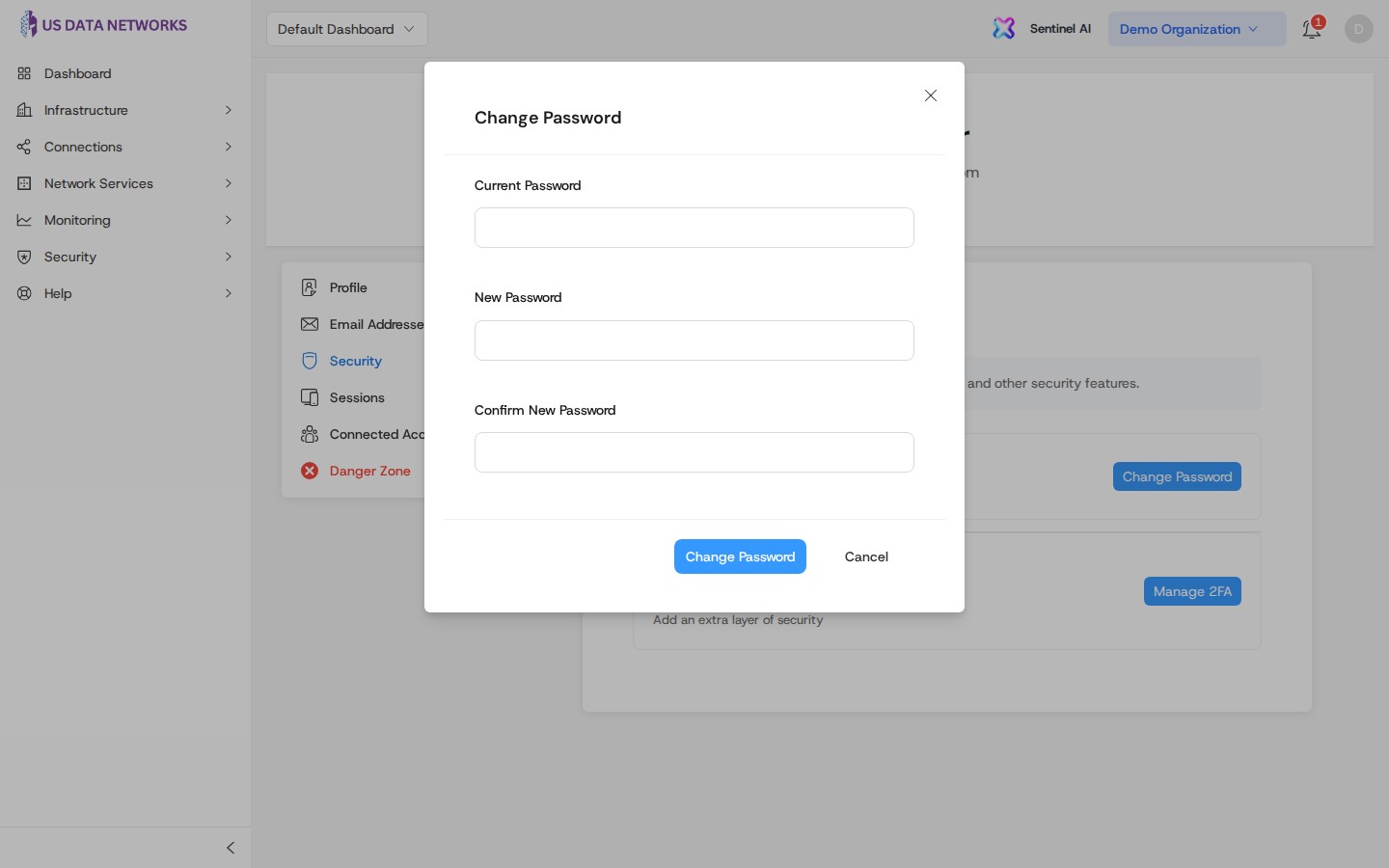
- Under Password, click Change Password.
- Enter your current password, then new password and confirmation.
- Click Change Password to save.
Two-factor authentication (TOTP authenticator)
USDN supports time-based one-time codes (Google Authenticator, Authy, Microsoft Authenticator, 1Password, and similar apps).
- Open Account → Security.
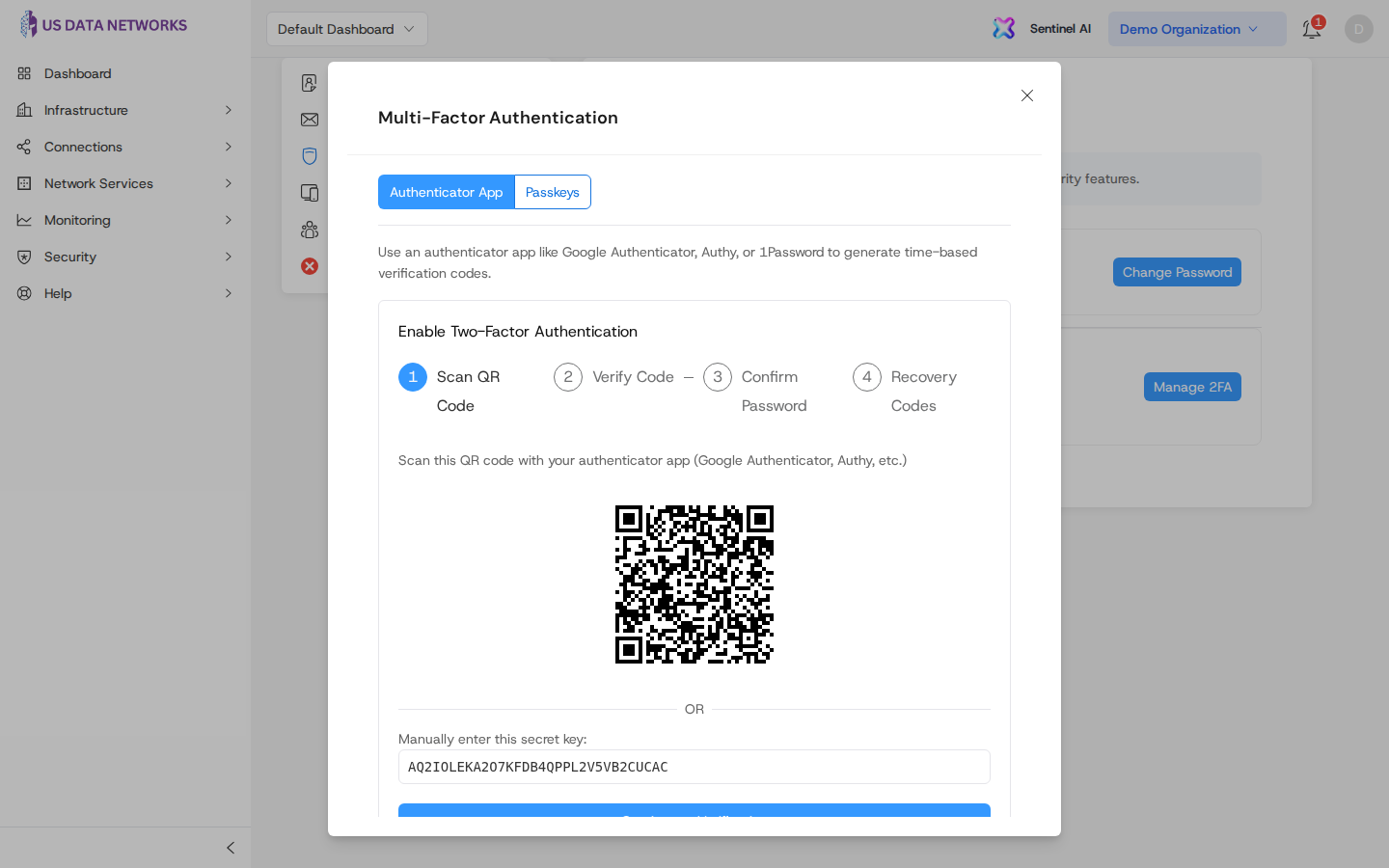
- Under Two-Factor Authentication, click Manage 2FA.
- Stay on the Authenticator App tab.
- Scan the QR code with your authenticator app, or enter the secret key manually.
- Enter the 6-digit code from the app when prompted and complete any password confirmation step required by your session.
- Save recovery codes when shown—store them offline in a safe place. They help you regain access if you lose your phone.
For more background on 2FA concepts and recovery, see Two-Factor Authentication Setup and YubiKey / passkeys.
Passkeys (WebAuthn)
Passkeys let you sign in with a security key, device biometrics, or a platform authenticator where supported.
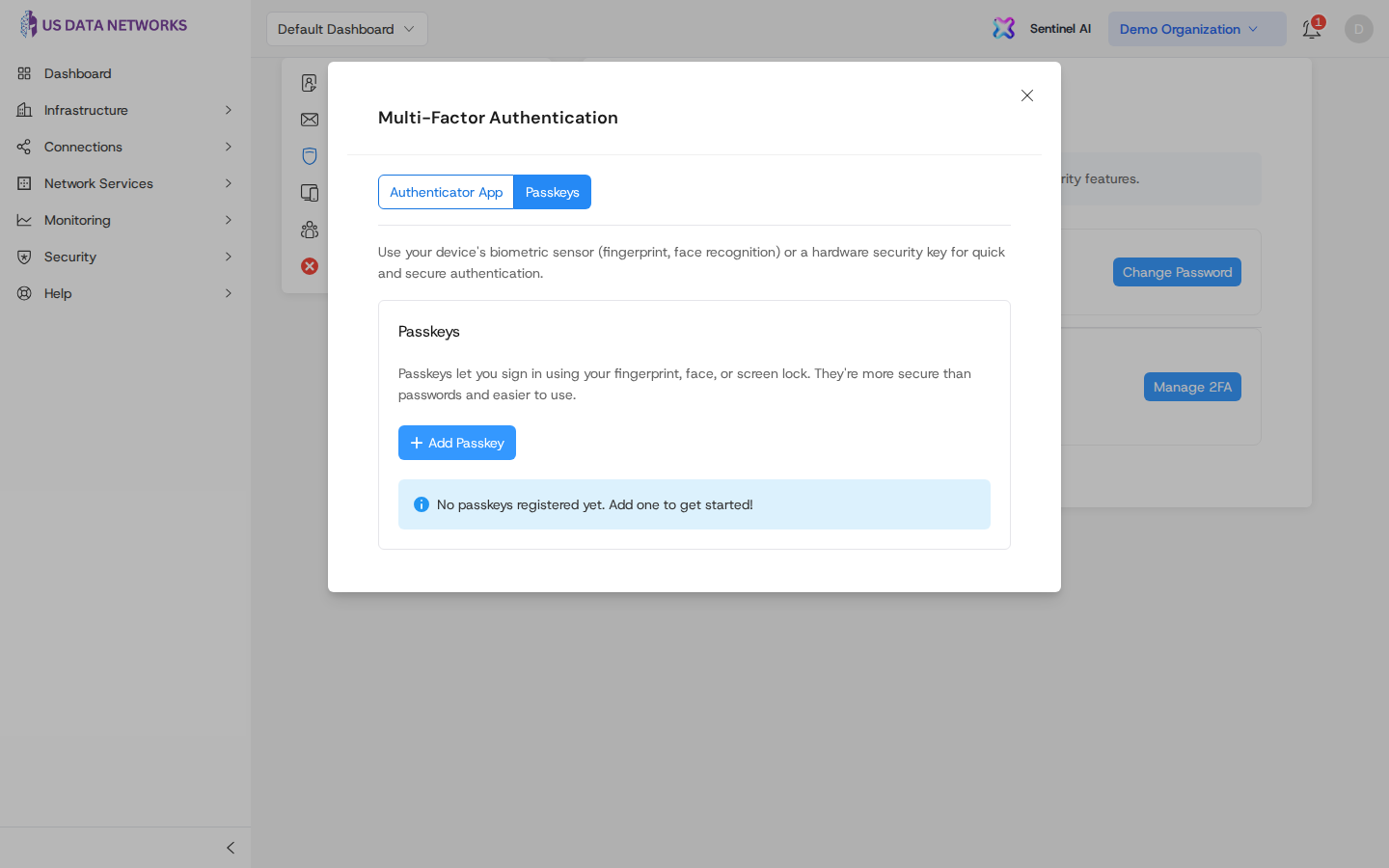
- In Account → Security, click Manage 2FA.
- Open the Passkeys tab.
- Follow the prompts to register a passkey (browser or OS dialogs will vary by device).
Active sessions
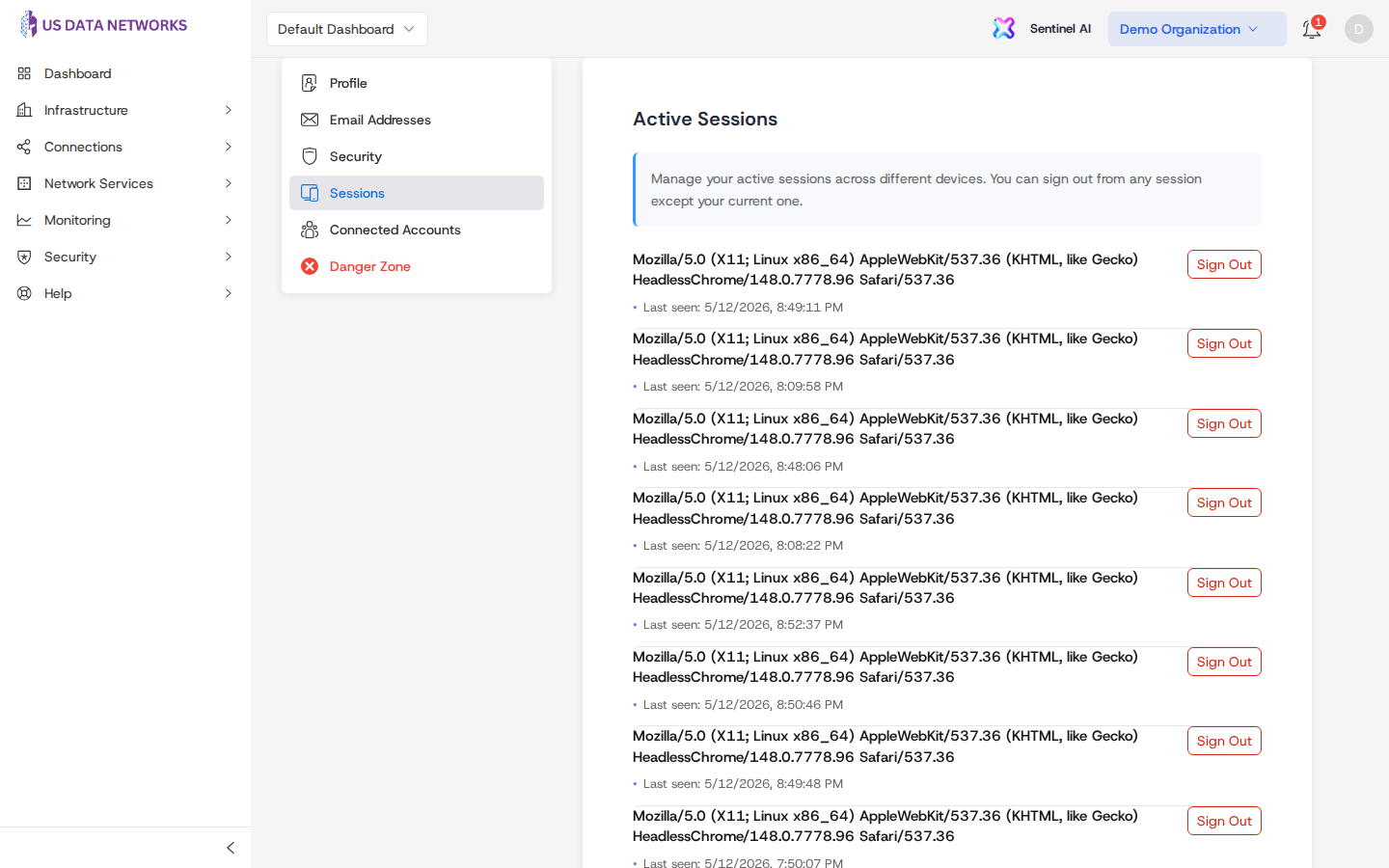
Review devices and browsers where your account is signed in:
- Go to Account → Sessions (left navigation).
- Review the list of active sessions.
- Sign out of individual sessions you do not recognize or no longer use.
Related guides
- Registration — first-time account and organization setup
- Two-Factor Authentication Setup — concepts, backup codes, and troubleshooting
- Security overview — platform security posture
- Support & Escalation — if you are locked out or need account recovery help