Managing devices
This guide covers the Devices list in the USDN portal, the device detail page, and common actions such as edit, activate / deactivate, and delete from the list.
Devices list
Open Devices from the main navigation. You see every device your organization can access, with toolbar controls for:
- Search — filter by text across device fields.
- Filter by device type — limit to a type such as VPN gateway or router.
- Filter by status — for example operational vs offline.
- Clear filters — reset search and pickers when filters are active.
- List / grid view — switch between a sortable table and card layout.
- Column picker (list view) — choose which columns are visible (name, type, site, status, management IP, last checked, and more).
- Create New Device — opens the device registration wizard.
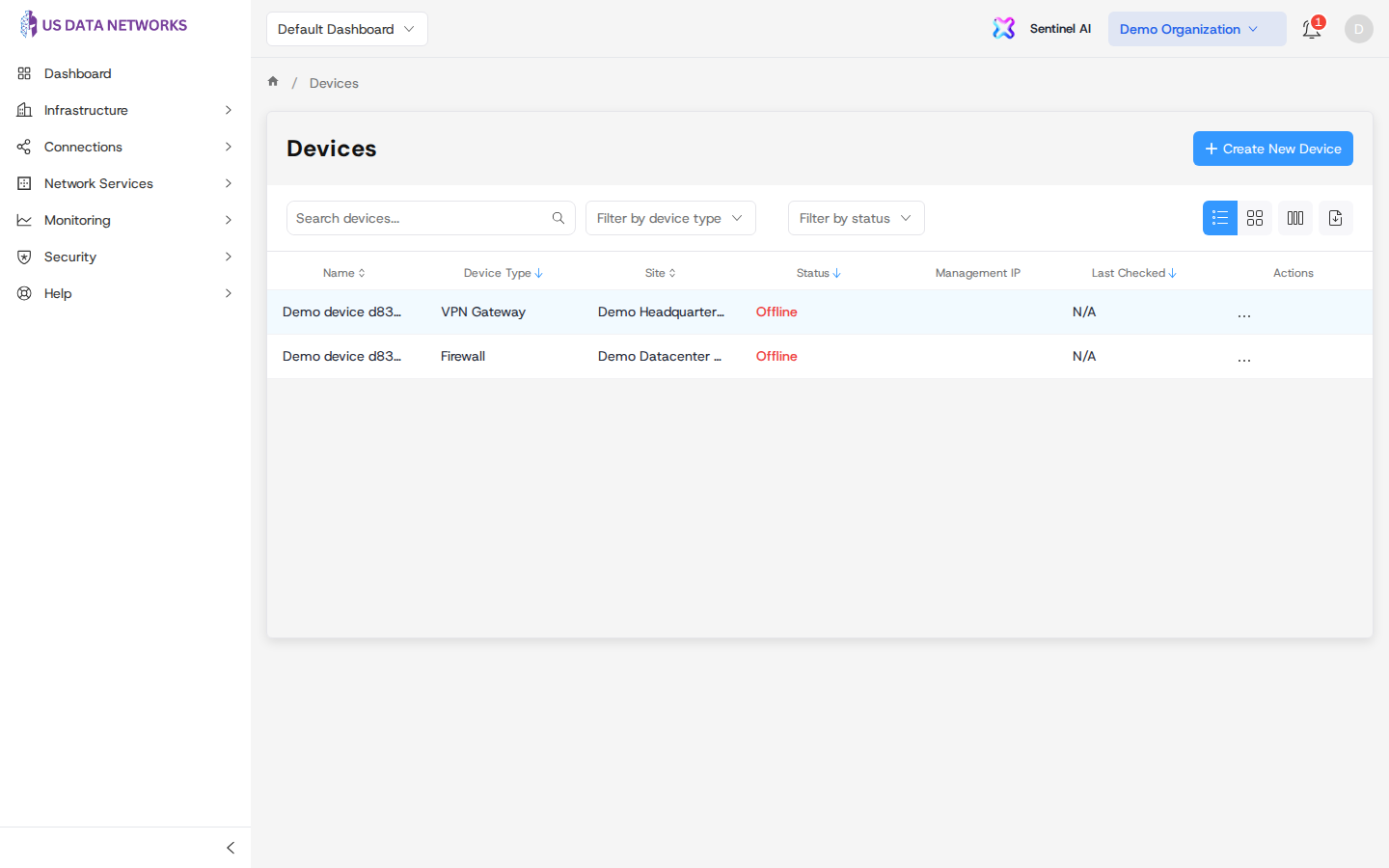
Click a row (or a card in grid view) to open that device’s detail page. Use the ⋯ (more) button in the Actions column when you need Edit, Activate / Deactivate, or Delete without leaving the list—these actions open dialogs tied to that row.
Device detail page
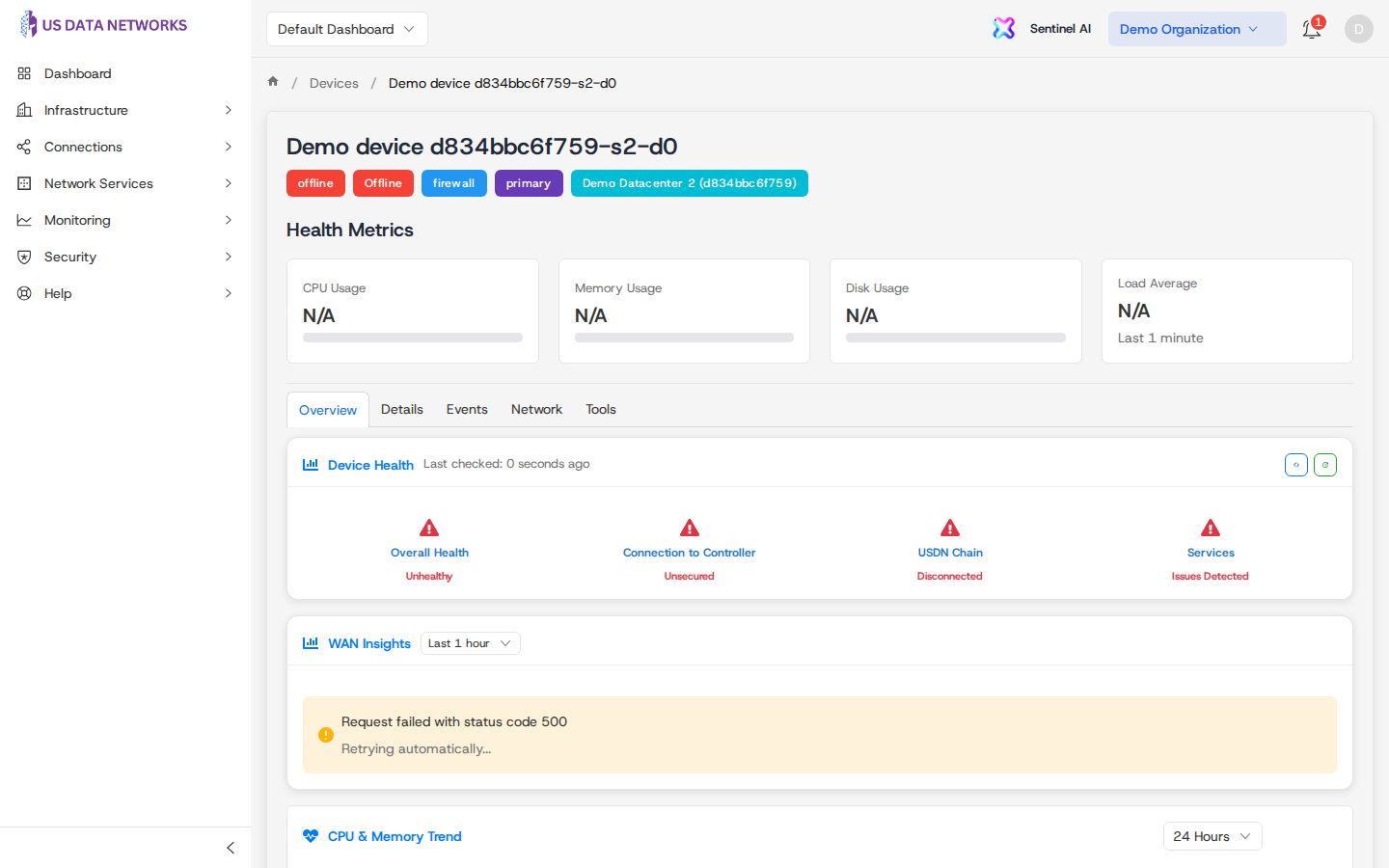
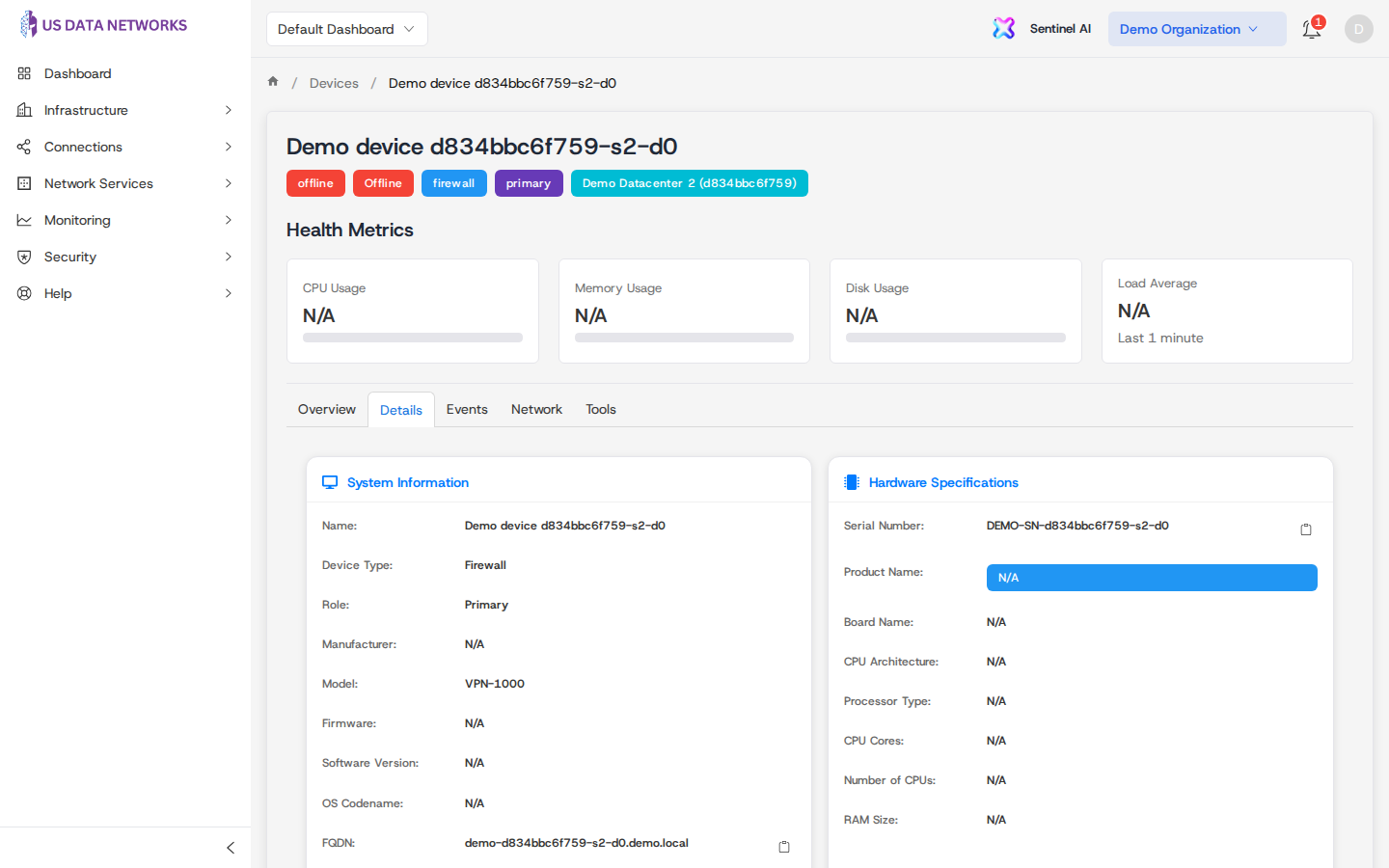
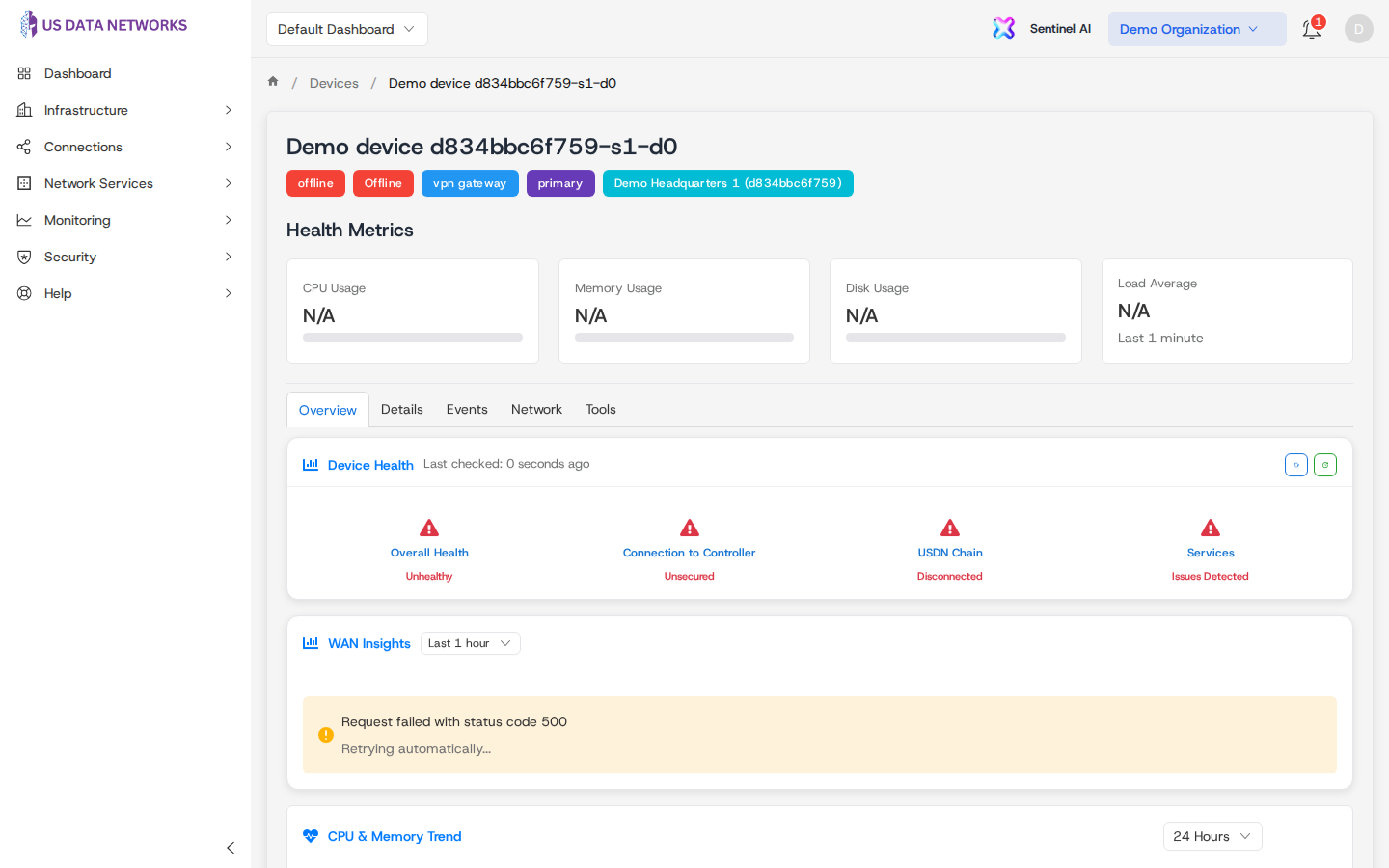
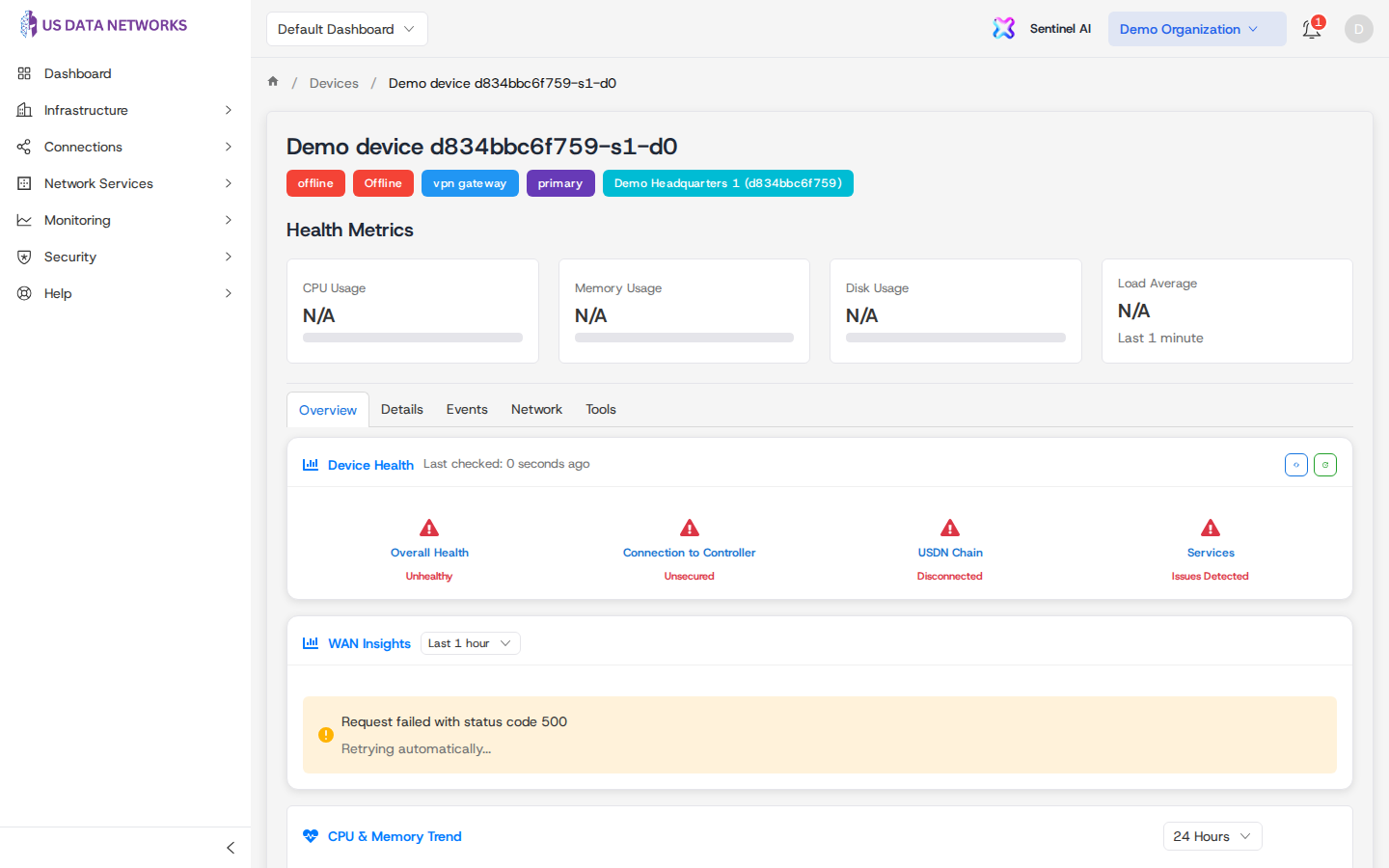
The detail page shows the device name, health tags (overall health and online/offline), type, optional role, and site. A Health metrics section summarizes CPU, memory, disk, and load when telemetry is available.
Tabs along the bottom of the panel:
- Overview — high-level status and operational context.
- Details — configuration and inventory-style fields.
- Events — timeline-style activity for the device.
- Network — interfaces and network-related data.
- Tools — operational utilities exposed for that device.
Update a device from the list
- On Devices, find the device in the table or grid.
- Click ⋯ in the Actions column for that row.
- Choose Edit.
- In the Edit Device dialog, adjust the fields you are allowed to change, then save—or cancel to close without saving.
Activate or deactivate
From the same ⋯ menu, choose Deactivate when the device is operational, or Activate when it is not. Your organization’s policies determine who may change activation state.
Delete a device
- Open ⋯ → Delete for the device row.
- Read the Confirm Delete message carefully.
- Click Delete to remove the device, or Cancel (or close the dialog) to keep it.
Deletion is permanent for that portal record; only proceed when you intend to remove the device from management.
Related guides
- Registering a device in the portal — site selection, cloud bootstrap tokens, and physical setup instructions.
- Requesting devices from an MSP — hardware procurement and shipping when you are not deploying from the portal alone.