Tunnels list and detail
Use Tunnels in the left navigation to review every tunnel in your organization, filter the list, and open a tunnel’s detail page for connection information, performance charts, and provisioning history.
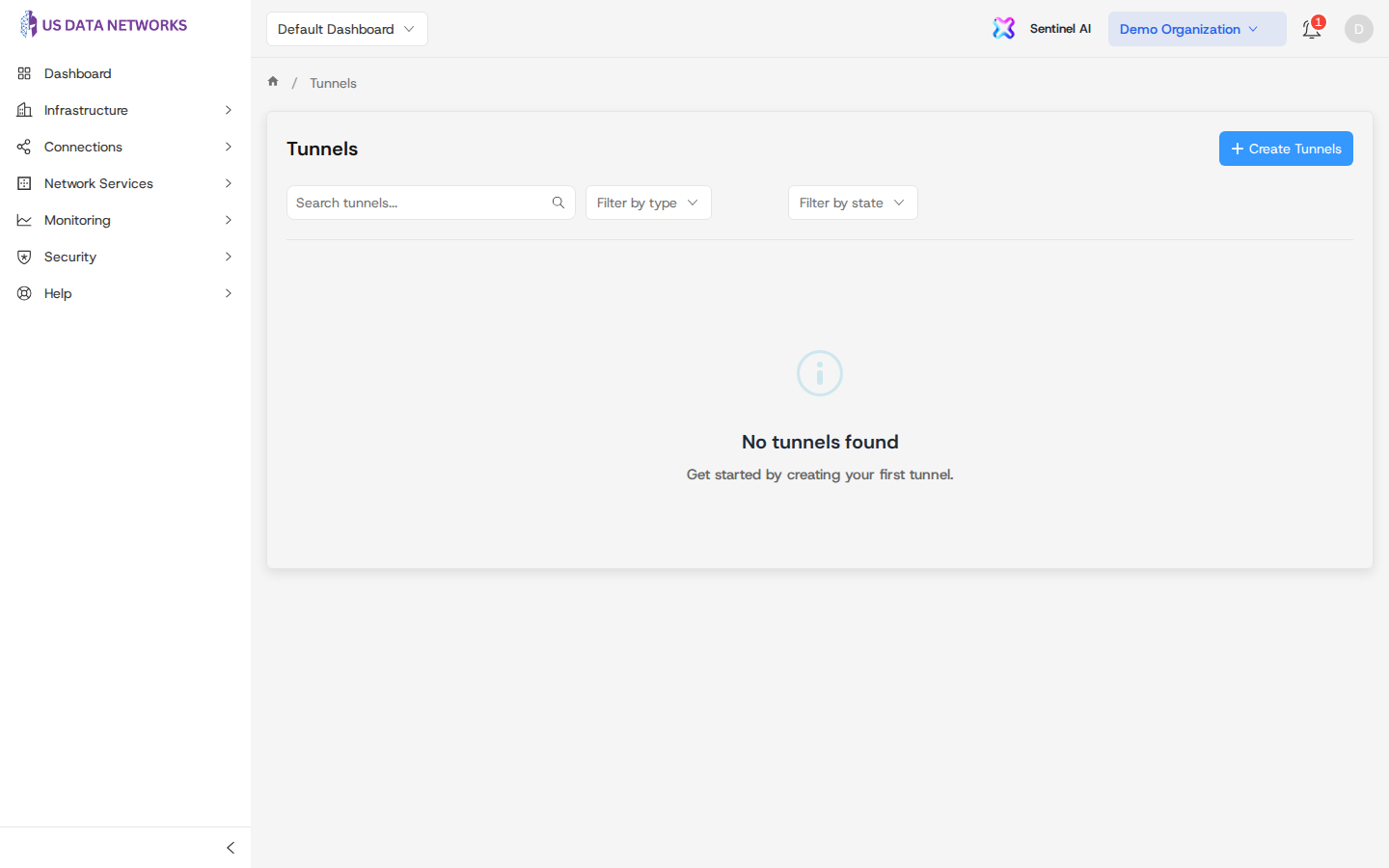
Tunnels list
- Open Tunnels from the main menu (URL path
/tunnels). - Use Search tunnels to match by name or related text.
- Use Filter by type and Filter by state to narrow the table. Choose Clear filters when you want to reset search and pickers.
- The table shows Name, Type (cryptographic profile shown as Curve25519, SECP256R1, or AES-256 depending on the tunnel technology), Local Node, Remote Node, State, and Created At.
- Click Create Tunnels to start the same order wizard used elsewhere in the portal (you need a completed topology with sites and devices).
- Click any row to open that tunnel’s detail page. Pagination appears when there are more results than the current page size.
Tunnel detail
The detail page shows the tunnel identifier, UUID, and a Status badge in the header. The main content is organized into tabs:
- Overview — Connection information (local and remote devices and sites, order link, tunnel type, addresses, and related metadata), endpoint health where available, and security or routing summaries depending on tunnel type.
- Performance — Telemetry controls (endpoint selector, time range), charts, and summary metrics when the tunnel is active and telemetry is available.
- History — Provisioning and status changes drawn from order device events when present.
Open a tunnel from the list, or from an order’s Tunnels tab (click a tunnel row there to land on the same detail page).
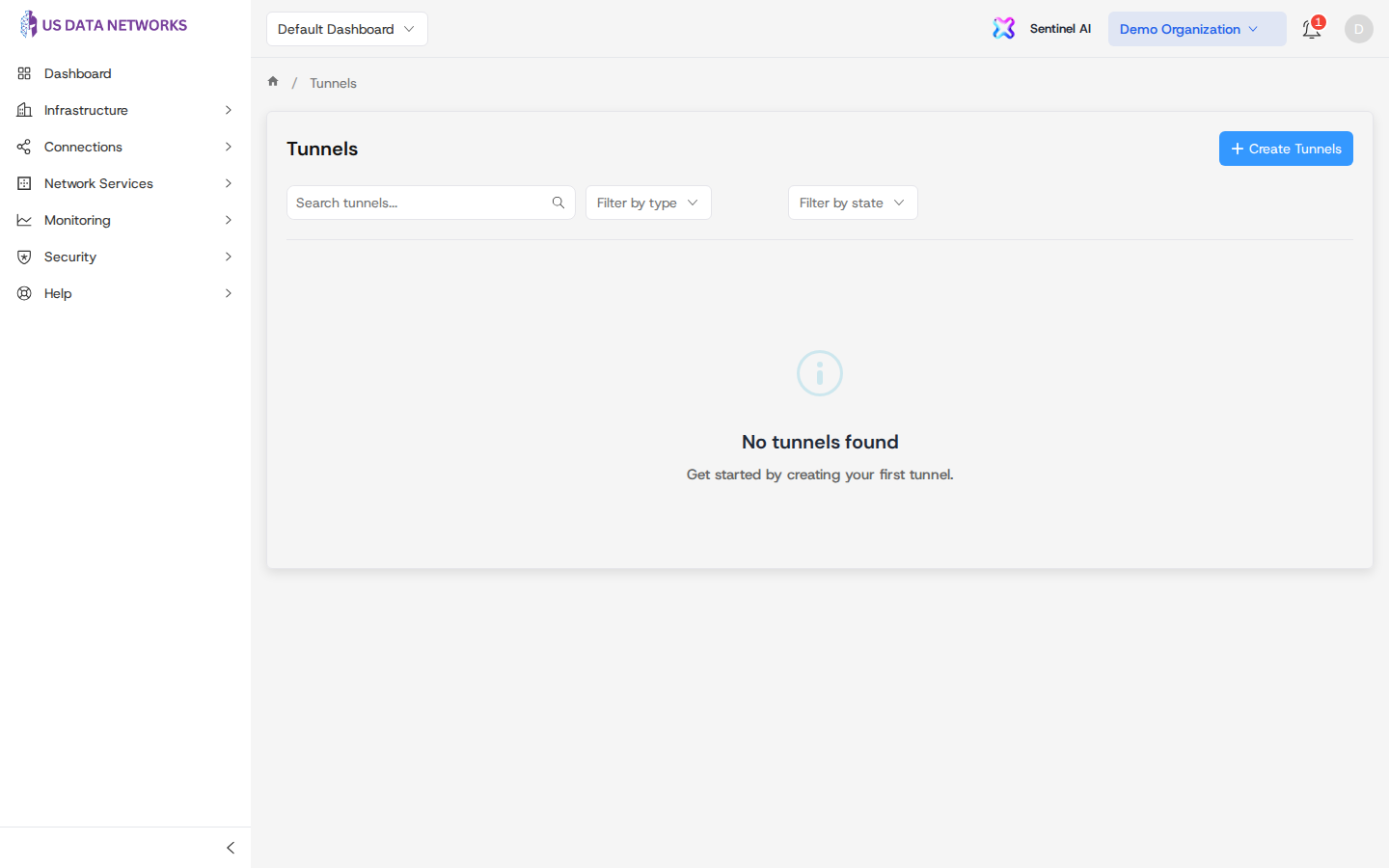
Note: The automated screenshot job saves a real Overview tab capture when at least one tunnel exists. If the demo database has no tunnels yet, the script reuses the list image for this filename so the build still succeeds—re-run
npm run capture-docs-screenshotsafter tunnels exist to refresh this asset.
Related guides
- Creating orders — provision tunnels through the order wizard.
- Monitoring orders — order-level Tunnels tab and logs.
- Tunnel setup and connectivity — concepts and operational guidance beyond the portal screens.